
 0/17
0/17 0/12
0/1201 Pong

Today’s Goal
Section titled “Today’s Goal”Make a table tennis game, like Pong: two paddles, one ball, and the first to ten points wins.
“Make it work.” We end up with a working, very basic game. The implementation is deliberately naive. It ignores good architecture and design practices, which keeps things simple and gets us to a working prototype quickly. The rest of the course is about making games like this one better as they grow.
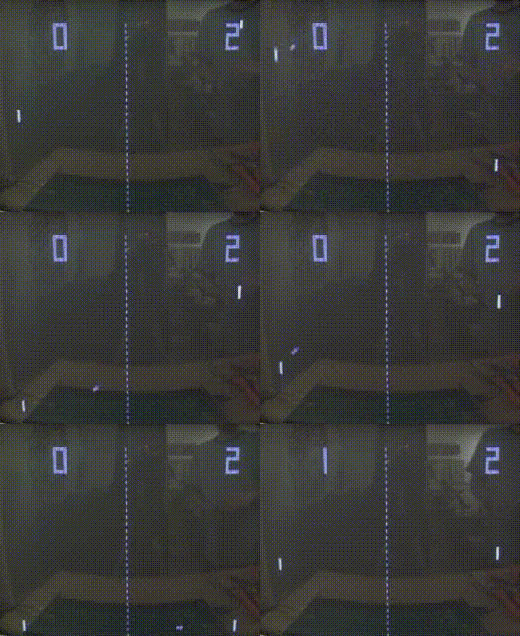

This session is about the game loop. Every game runs the same cycle many times a second.
It reads the input, updates the game and draws it. MonoGame runs that loop for us, and we fill
it in, first all in Game1, and later with the Update Method pattern. By the end of the
session, we will have a game with:
- An update loop
- Primitive graphics
- Collision detection
- Hardcoded input
- Crude state management
- Homemade 8-bit audio
Source code: gar-games/01-pong
Prepare
Section titled “Prepare”- Building 2D Games, MonoGame’s own tutorial. It builds one game from start to finish, so the sessions link the chapters that match their topics, and the rest is there when you need it.
- 01: What Is MonoGame?
- 03: The Game1 File
- Game Loop (Game Programming Patterns)
- Update Method (Game Programming Patterns)
- Optional: 02: Getting Started,
for background. Install only the tooling below: our projects
build their content with
Builder.cs, so you don’t need the MonoGame templates, the VS Code extension or the MGCB Editor.
MonoGame & Tooling
Section titled “MonoGame & Tooling”MonoGame is a framework. It gives us libraries for graphics, input, audio, content loading and math, but it has no editor, scene graph or entity system, as a game engine has. We write those parts ourselves, which makes it a good fit for a course about game architecture.
Tooling used in the course:
- .NET 10 SDK
- VS Code with the C# Dev Kit extension
- Git
- The course’s games, in one repository on GitHub: gar-games. Each game’s code is split into steps, one project per exercise.
Game Loop
Section titled “Game Loop”Every game runs a loop: process input, update the simulation, render, repeat. In MonoGame,
the Game class runs the loop and calls your Update and Draw overrides.
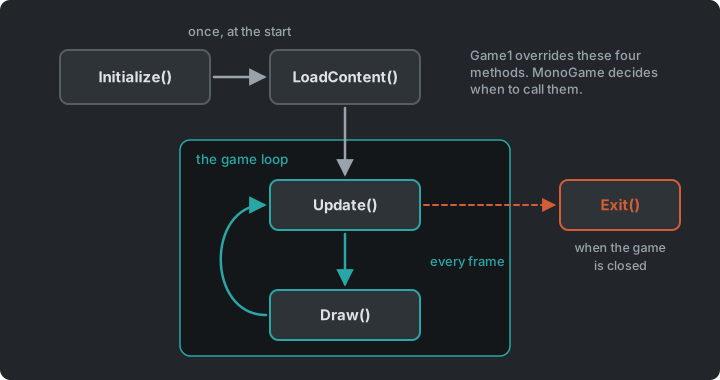
Nothing calls Update on your objects for you. Game1 gets one Update and one Draw
call per frame, and everything else in your game only runs if you call it from there. For more detail, see
What is the Game Loop.
Update changes the state of the world, and Draw only reads that state and renders it.
Because they are kept apart, the simulation and the rendering can run at different rates,
which is the idea behind a fixed timestep.
Rendering itself uses a double buffer: we draw into a back buffer that isn’t visible,
and MonoGame presents it (GraphicsDevice.Present(), called at the end of Draw) so the
player never sees a half-drawn frame. See
Double Buffer for the pattern.
Fixed vs. variable timestep
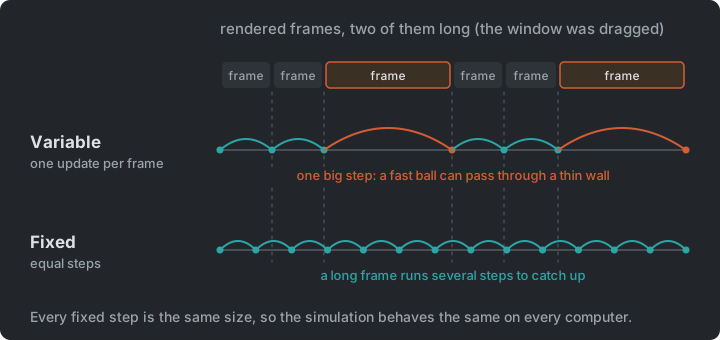
Section titled “Fixed vs. variable timestep”- Variable timestep: update once per rendered frame and scale all movement by the
elapsed time (
deltaTime). Simple, but the simulation behaves slightly differently at different frame rates. A long frame (the window is dragged, the computer stalls) gives a largedeltaTime, and a fast object can jump straight through a thin wall in one step. - Fixed timestep: update the simulation in fixed-size steps (e.g. 60 per second),
running zero, one or several steps per rendered frame. This makes the simulation
deterministic and stable, at the cost of some complexity. If one step takes longer than
the time it simulates, the game falls further behind every frame; engines limit how many
steps they catch up, and MonoGame then runs the game in slow motion. MonoGame uses a
fixed timestep by default (
IsFixedTimeStep = true).
Content Pipeline
Section titled “Content Pipeline”Raw assets (fonts, images, sounds) aren’t loaded directly. When the game builds, the
content builder converts them into an optimized format (.xnb files) for the target
platform, and at runtime we load them with Content.Load<T>("name") in LoadContent.
flowchart LR
A["Raw assets<br/>Assets/"] --> B["Builder.cs<br/>rules in C#"] --> C["Content builder<br/>runs on build"] --> D[".xnb files<br/>bin/…/Content"] --> E["ContentManager<br/>Content.Load<T>()"]
The rules for building assets are ordinary C# in Content/Builder/Builder.cs. For Pong, we
need fonts and sounds:
public class Builder : ContentBuilder{    public override IContentCollection GetContentCollection()    {        var content = new ContentCollection();
        // A .spritefont describes a font (e.g. a .ttf next to it), a size and a set of        // characters. The builder renders those characters into a texture.        content.Include<WildcardRule>("*.spritefont", new FontDescriptionImporter(), new FontDescriptionProcessor        {            PremultiplyAlpha = true,            TextureFormat = TextureProcessorOutputFormat.Compressed,        });
        // Short sounds become sound effects, loaded fully into memory.        content.Include<WildcardRule>("*.wav", new WavImporter(), new SoundEffectProcessor        {            Quality = ConversionQuality.Best,        });
        return content;    }}
Each game project imports Content/BuildContent.targets, which runs the builder before
compiling. To add an asset, put it in Content/Assets; if no rule matches it, add one. All
Pong steps share that folder, and step 3 swaps the plain sans font for the retro font
in code. See
Content Builder Project.
Drawing to the Screen
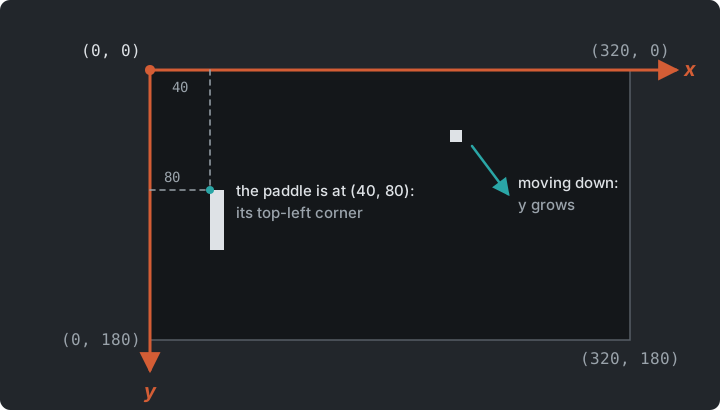
Section titled “Drawing to the Screen”- MonoGame’s 2D coordinate system has its origin in the top-left corner, with Y pointing down.
- All 2D drawing goes through a
SpriteBatch, betweenBegin()andEnd().Drawdoesn’t draw straight away. The sprite batch collects the calls, andEnd()sends them to the graphics card in as few batches as it can. A batch ends whenever the texture changes, which is why Snake puts its images in one texture.Begin()takes the settings for everything up toEnd(): the transform matrix, the texture filtering and the blending. - Pong doesn’t need image assets, but we still need a texture to draw rectangles. A 1×1
white texture stretched to any
Rectangledoes the job:
_pixel = new Texture2D(GraphicsDevice, 1, 1);_pixel.SetData([Color.White]);
_spriteBatch.Draw(_pixel, new Rectangle(x, y, width, height), Color.White);- Text is drawn with a
SpriteFontasset andSpriteBatch.DrawString().MeasureStringgives the size the text will have, which is what you need to centre it:
Vector2 size = _font.MeasureString("Hello, MonoGame!");
_spriteBatch.Begin();_spriteBatch.DrawString(_font, "Hello, MonoGame!", new Vector2(640 - size.X / 2, 360 - size.Y / 2), Color.White);_spriteBatch.End();- The window’s size is set on the
GraphicsDeviceManagerin the constructor, withPreferredBackBufferWidthandPreferredBackBufferHeight. - Texture filtering: use
SamplerState.PointClampfor crisp pixel art when scaling up.
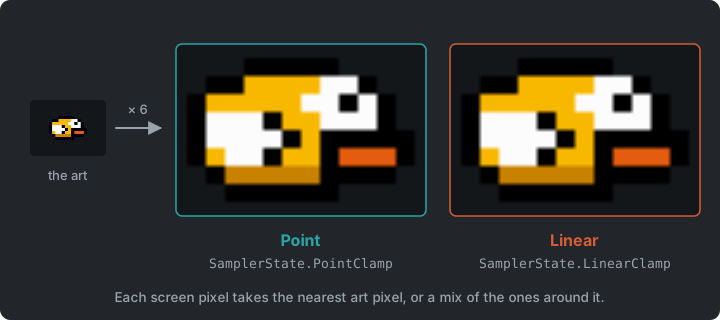
See What is a sprite?.
Virtual resolution
Section titled “Virtual resolution”Step Pong2
We render the game at a fixed internal resolution, 320×180, and scale it to the window with
a transform matrix passed to SpriteBatch.Begin(). The game logic never needs to know how
big the window is.
Pong2 scales by the smaller of the two ratios (window width / 320, window height / 180),
so nothing is stretched, and centres the result with GraphicsDevice.Viewport. Black bars
fill the rest. It recalculates when Window.ClientSizeChanged fires. The window opens at
1280×720, four times the virtual size. At a whole-number scale, every pixel comes out the
same size.
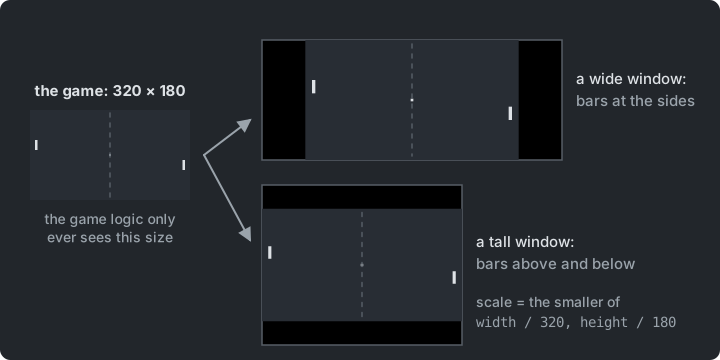
Try it (Pong2): drag the window wide, then tall. Where do the bars go? Swap
PointClamp for LinearClamp, and look at the edges of the text. Then set the virtual size
to 640×360. How big is the text now?
We poll the keyboard every frame:
KeyboardState keyboard = Keyboard.GetState();
if (keyboard.IsKeyDown(Keys.W))    _player1Y -= PaddleSpeed * deltaTime;if (keyboard.IsKeyDown(Keys.S))    _player1Y += PaddleSpeed * deltaTime;
MonoGame has no built-in “was this key just pressed?”. We emulate it by comparing with last frame’s state:
bool enterPressed = keyboard.IsKeyDown(Keys.Enter) && !_previousKeyboard.IsKeyDown(Keys.Enter);_previousKeyboard = keyboard;Delta Time & Velocity
Section titled “Delta Time & Velocity”deltaTime is the time since the last update, in seconds:
float deltaTime = (float)gameTime.ElapsedGameTime.TotalSeconds;Multiplying movement by deltaTime makes speed independent of frame rate. A paddle moving
at 200 units per second moves 200 units per second, whether the game runs at 30 or 144 FPS.
Velocity (a direction and a speed, e.g. a Vector2) lets the ball keep moving without
input.
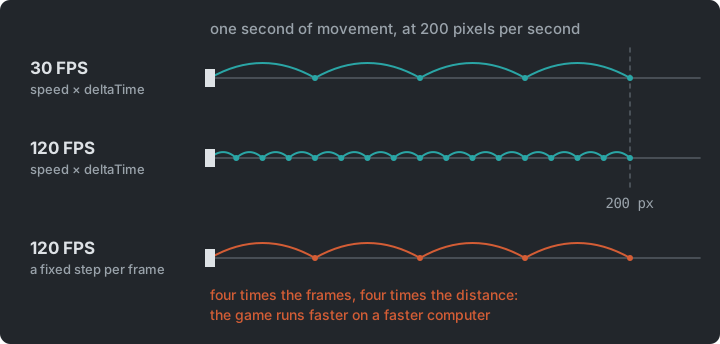
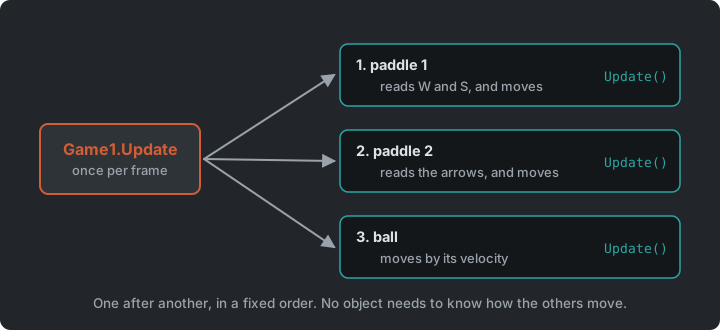
Encapsulation & the Update Method Pattern
Section titled “Encapsulation & the Update Method Pattern”Our first version puts everything in Game1. As soon as we have a paddle and a ball, we
move their data and behaviour into Paddle and Ball classes, each with its own Update
and Draw methods. Game1 then just calls them. This is the
Update Method pattern: each
object knows how to simulate one frame of its own behaviour.
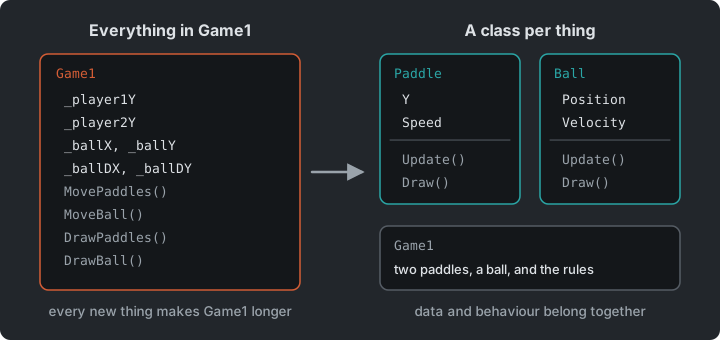
It has costs too. Objects are updated one after another, so the order matters. An object
updated early sees the others as they were last frame, and one updated late sees them
already moved. Objects that interact, like the ball and the paddles, need a reference to
each other, or a place like Game1 that checks them together. Every object is updated every
frame even when it has nothing to do. And adding or removing objects while looping over them
needs care (Angry Birds shows how).
Collision Detection (AABB)
Section titled “Collision Detection (AABB)”Axis-Aligned Bounding Boxes are rectangles that never rotate. Two of them overlap if they overlap on both axes:
public static bool AABB(Rectangle a, Rectangle b){ return a.Left < b.Right && a.Right > b.Left && a.Top < b.Bottom && a.Bottom > b.Top;}(MonoGame provides the same check as Rectangle.Intersects(), but it’s worth writing
yourself once.)
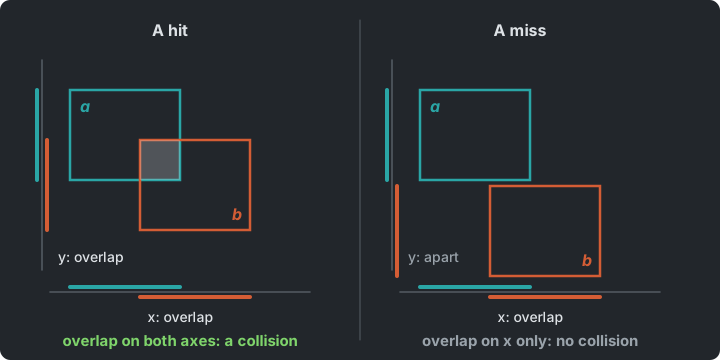
Detecting the hit is half of it. The ball also has to respond. Flip its horizontal velocity,
and move it back to the paddle’s edge, or it is still inside the paddle on the next frame
and bounces again. In Pong7, where the ball hits the paddle sets its new angle. The middle
sends it straight back and the ends send it off steeply, so the player can aim:
float offset = ballCentreY - paddleCentreY;float newVelocityY = offset / (paddle.Height / 2f) * 110;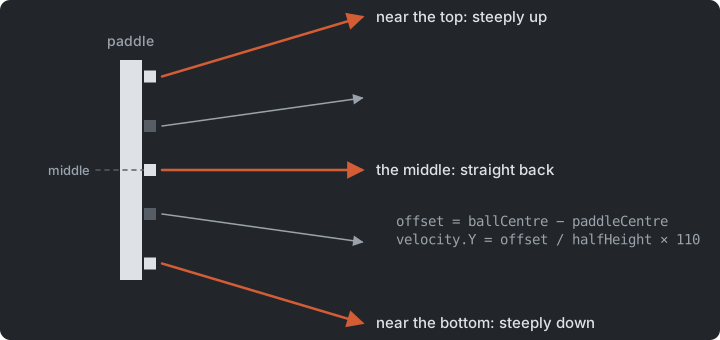
Game State
Section titled “Game State”Steps Pong7 → Pong10
Pong has distinct phases: start, serve, play and done. Pong8 keeps the score and
shows it in a bigger font, Pong9 adds a serve mode (the player who was scored on serves
next), and Pong10 a done mode when a player reaches 10 points. The modes are a simple
string field and if-checks in Update and Draw. That is fine for four states, but every
new state means another if in each method. In Flappy Bird we replace
it with a state machine.
stateDiagram-v2
    [*] --> start
    start --> serve : Enter
    serve --> play : Enter
    play --> serve : a point
    play --> done : 10 points
    done --> serve : Enter
Try it (Pong10): make a game end at 3 points. Then add a paused mode that P toggles
during play. Which methods did you have to change?
Sound Effects
Section titled “Sound Effects”Step Pong11
SoundEffect is for short clips (hits, jumps, clicks). They are loaded fully into memory
and several can play at once. Longer music uses Song, as in Flappy Bird.
Pong11 plays a sound for a paddle hit, a wall hit and a point.
Make your own 8-bit sounds with bfxr.net.
Try it (Pong11): Play also takes a volume, a pitch and a pan. Raise the paddle sound’s
pitch as the ball speeds up.
The Whole Game
Section titled “The Whole Game”Step Pong11
Pong11 is the finished game. Game1 still runs everything. It holds the two paddles and
the ball, the mode string, the scores and the sounds, and it checks the ball against each
paddle. Paddle and Ball only move and draw themselves.
classDiagram
    Game <|-- Game1
    Game1 --> Paddle : two
    Game1 --> Ball
    Ball ..> Paddle : collides with
The diagram is small because Game1 is big. Every later session moves something out of it.
Summary
Section titled “Summary”| Concern | Answer |
|---|---|
| What runs every frame | The game loop, which calls Update and then Draw |
| The same speed at any frame rate | Movement multiplied by delta time |
| Who moves each object | The object itself, in its own Update (Update Method) |
| Any window size | A virtual resolution, scaled with a matrix |
| Whether two things touch | AABB |
| Which phase the game is in | A string field, which Flappy Bird replaces with a state machine |
Exercises
Section titled “Exercises”Build Pong step by step:
- An empty game: clone gar-games, open
01-pong/Pong0(an empty MonoGame game set up with the content builder) and run it from the01-pongfolder withdotnet run --project Pong0. Do the exercises inPong0; stepPongNis a solution to exercise N, to compare with when you’re done. - Text on screen: draw “Hello, MonoGame!” centred on a black 1280×720 window. The
font is already in
Content/Assets: load it withContent.Load<SpriteFont>("sans"), and centre the text withMeasureString. - Virtual resolution: bring your game up to
Pong2. Copy the virtual size constants, the matrix field andUpdateScreenScaleMatrix, call it fromInitializeand whenWindow.ClientSizeChangedfires, and pass the matrix andSamplerState.PointClamptoBegin. Centre the text in 320×180. - Rectangles from a pixel: draw two paddles (5×20) and a ball (4×4), stretched from one
white pixel. Switch to the retro font (
"font", also inContent/Assets) and the background colour(40, 45, 52). - Input and delta time: W/S and Up/Down move the paddles, at the same speed whatever
the frame rate. To check it, set
TargetElapsedTime = TimeSpan.FromSeconds(1 / 30.0)in the constructor. Does a paddle still cross the screen in the same time? And without the multiplication by delta time? - A moving ball: launch the ball in a random direction on Enter. A
stringfield remembers the game’s mode ("start"or"play"), and the start mode shows “Press Enter to launch the ball”. Keep the paddles on screen (Math.Clamp). - The Update Method: refactor into
PaddleandBallclasses using the Update Method pattern. The game must behave as it did before. In which order doesGame1update the three objects, and would another order change anything? - Collisions and the bounce: bounce off paddles and walls with AABB. Where the ball hits the paddle sets the new angle: straight back from the middle, steeply from the ends. Speed up the ball by 10% on each paddle hit.
Going further (optional): carry on from your own game with what Pong8 to Pong11
show: scoring in a bigger font ("font-big"), a serve mode, a winner at 10 points, and
sound effects for paddle hits, wall hits and points (in Content/Assets/sounds, or made
with bfxr).
Apply It to Your Project
Section titled “Apply It to Your Project”- Which games would you like to make? Pick two or three candidates for your course project.
- For each, what updates every frame, and what is drawn? That’s its game loop.
- Could you build a naive prototype of the core idea first, like this Pong, before worrying about architecture?
Check Yourself
Section titled “Check Yourself”What is the difference between a game engine and a game framework?
An engine is a complete environment: editor, scene and object model, and a loop that calls your scripts. A framework like MonoGame is a set of libraries. You write the game’s structure yourself, including the loop’s contents.
Why do we multiply movement by deltaTime?
So that movement per second is the same no matter how many frames are rendered per second.
Why is a string field a fragile way to store game state?
Typos aren’t caught by the compiler, every Update/Draw needs an if-chain over all
states, and adding a state means editing all of those chains.
What does the Update Method pattern cost?
Objects are updated one after another, so the order matters. An object updated early sees the others as they were last frame. Objects that interact need a reference to each other or a place that checks them together, and every object is updated every frame, even when it has nothing to do.
How do a fixed and a variable timestep differ?
A variable timestep updates once per rendered frame and scales movement by the elapsed time, so the simulation depends a little on the frame rate. A fixed timestep always advances the simulation by the same amount, running zero, one or several steps per frame, which keeps it stable and repeatable.